STEP 1
BEFORE YOUR FIRST INVOICE
Know where the money lives
GO TO
Payments → Invoices
Take a look before you send anything. This is where every invoice you ever send is tracked — sent, viewed, overdue, paid — and it’s the page you’ll come back to most.
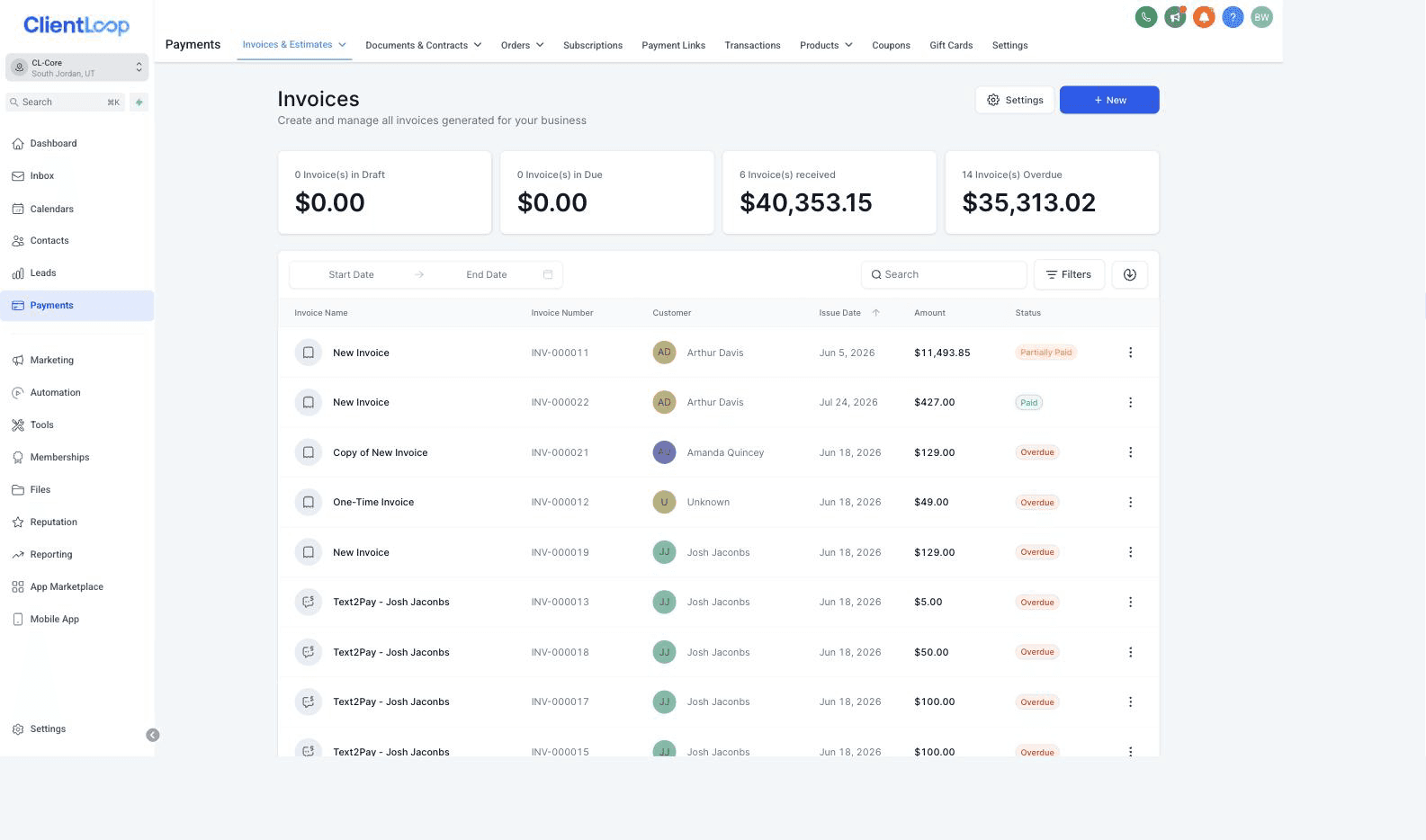
Your money at a glance, and every invoice below it.
The four numbers across the top are your position: what’s still in draft, what’s due, what you’ve received, and what’s overdue.
You’ll know it worked when
you can open Payments → Invoices and see the tracking view above. Yours starts empty — that’s correct.
STEP 2
SEND AN INVOICE
Send an invoice
GO TO
Payments → Invoices → New
Click New and you get three choices.
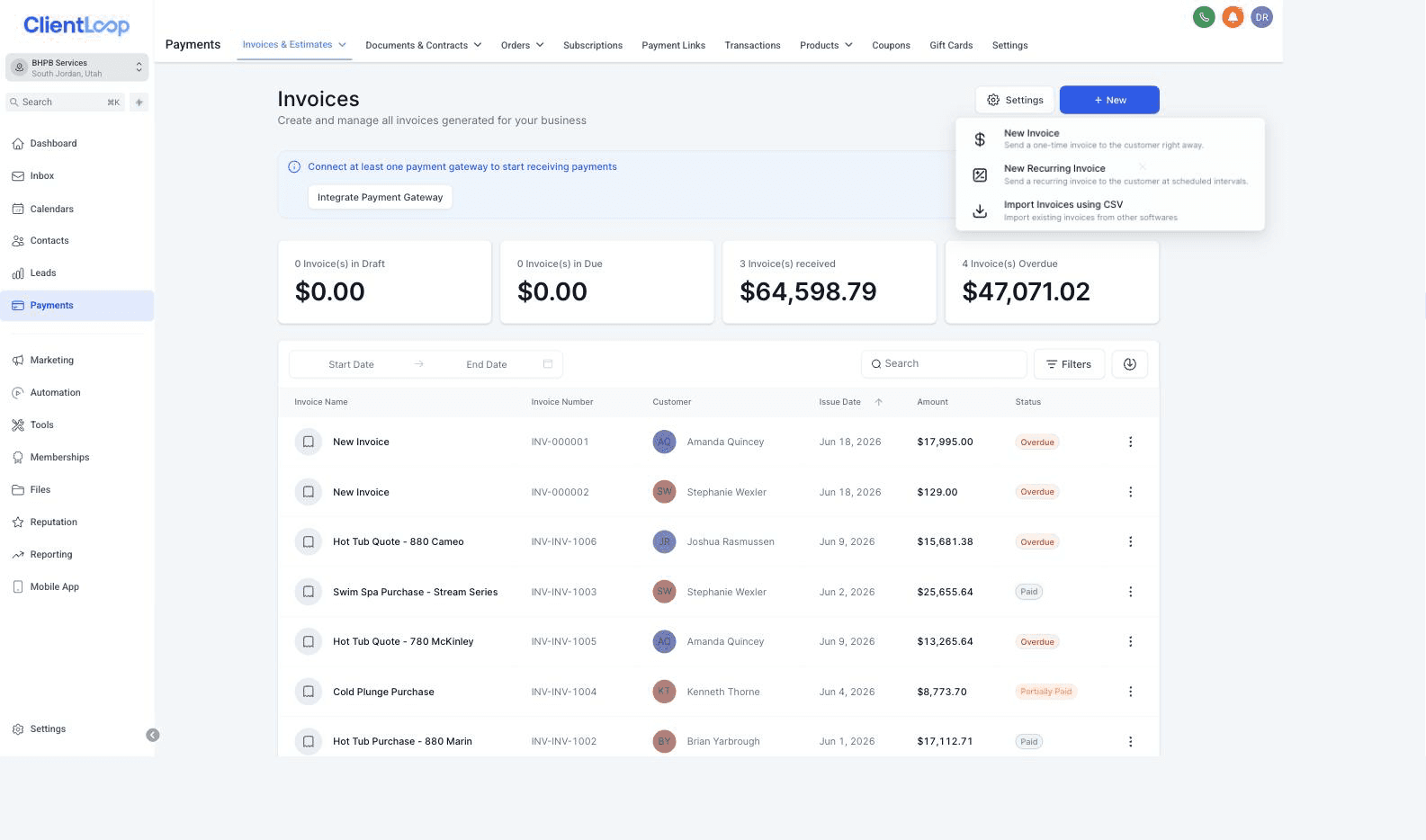
One-time, recurring, or import what you already have.
Choice | Use it for |
|---|---|
New Invoice | A one-time bill for a job you’ve done |
New Recurring Invoice | Anything on a repeating schedule — a maintenance plan, a monthly package |
Import Invoices using CSV | Bringing existing invoices over from whatever you used before |
Pick New Invoice and you land in the builder. Your details are already filled in — your business name, address, phone and logo come straight from your business profile.
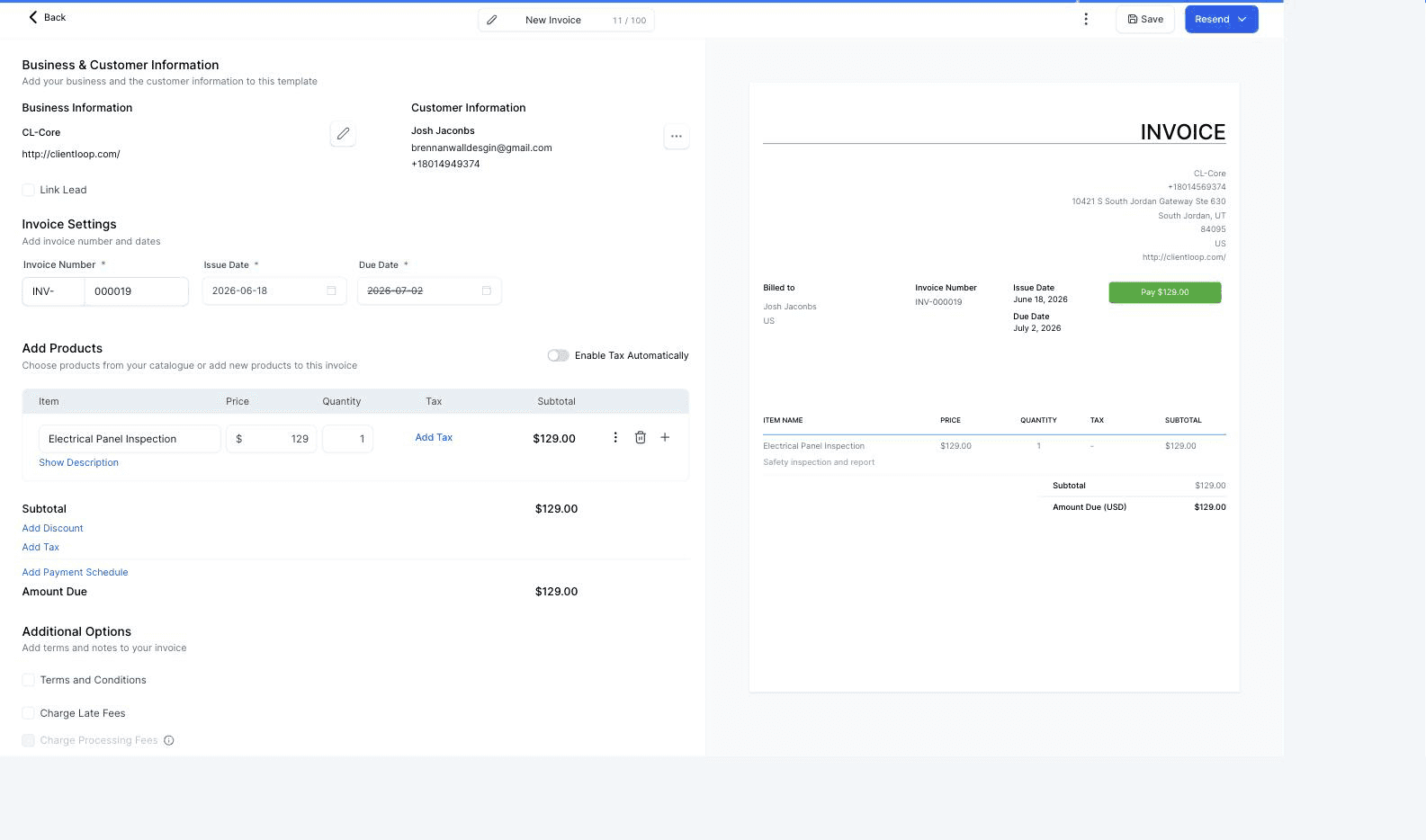
The right-hand side is exactly what your customer will see, green Pay button and all.
The right-hand side is a live preview. It’s exactly what your customer receives, updating as you type — so there’s no guessing and no test sends.
What to fill in
Pick the customer — start typing a name and select them; their details fill in automatically
Set the dates — issue date defaults to today, due date to two weeks out — change either
Add what they’re paying for — pull from your product catalogue or type a one-off line, as many as the job needs
Adjust the total if you need to — discount, tax, and a payment schedule — a deposit now, the balance later — are one click each
Send it — by email, or as a payment link by text
LINK IT TO THE JOB
Tick “Link Lead” and the invoice attaches to that job on your pipeline. Worth doing every time — it’s what keeps the work and the money joined up, and it’s how the board knows to move the card when payment lands.
You’ll know it worked when
the invoice appears in your list at Sent, and the customer’s contact record shows it in their history.
STEP 3
HOW CUSTOMERS PAY
How your customers actually pay
Your customer doesn’t need an account, an app, or a login. They open the invoice and pay from it.
Card — straight from the invoice
Bank transfer — for larger amounts, from the same screen
Flex Pay — customer financing, so a bigger job is easier to say yes to — it appears as one of the ways to pay at checkout
Text-to-Pay
You can send the payment link by text instead of email. Most people pay a text link faster than they pay an emailed invoice — it lands on the phone that’s already in their hand.
What they see once it’s paid
The moment it clears, the invoice they’re looking at stamps itself paid, with the date and time. No receipt to chase, nothing for you to confirm.
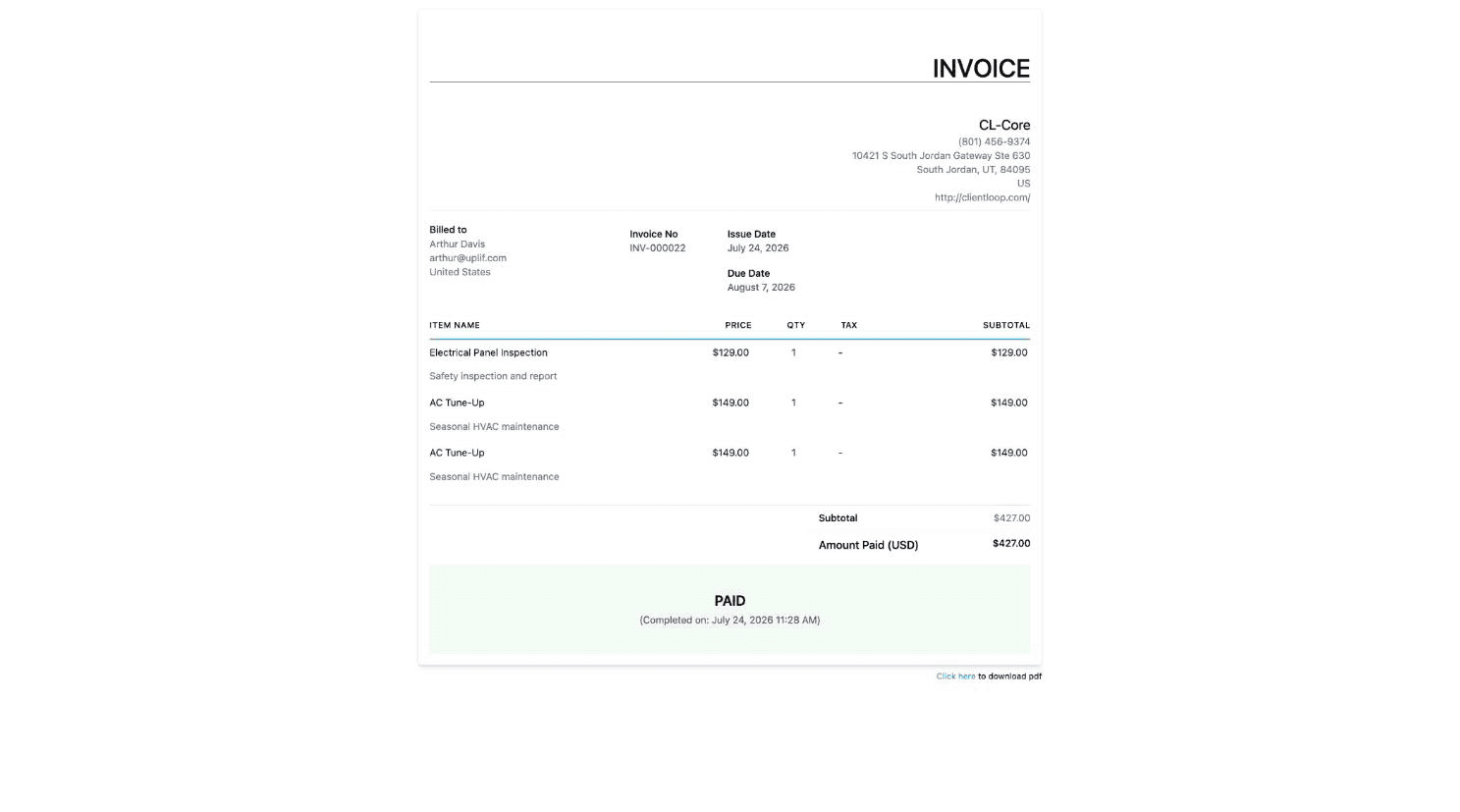
The customer’s own invoice, stamped paid the moment it clears.
MORE REVIEWS, MORE FINANCING
Flex Pay becomes available to your customers once your business has built up enough reviews. It’s the clearest example of why the automatic review requests matter — your reputation directly widens what you can offer.
STEP 4
THE PART THAT RUNS ITSELF
Getting paid without chasing
What happens | What the CRM does |
|---|---|
You send the invoice | Delivers it, and marks it Sent |
The customer opens it | Marks it Viewed, so you know it landed |
It goes a day past due | Moves it to Overdue and alerts your team |
The customer pays | Marks it Paid, sends the receipt, and moves the job card forward |
Reminders go out on their own between those steps. You don’t write them and you don’t send them.
The billing board
Alongside the invoice list there’s a board that tracks the money the same way your pipeline tracks the work.
Sent → Viewed → Overdue → Paid in Full → Partially Paid → Void
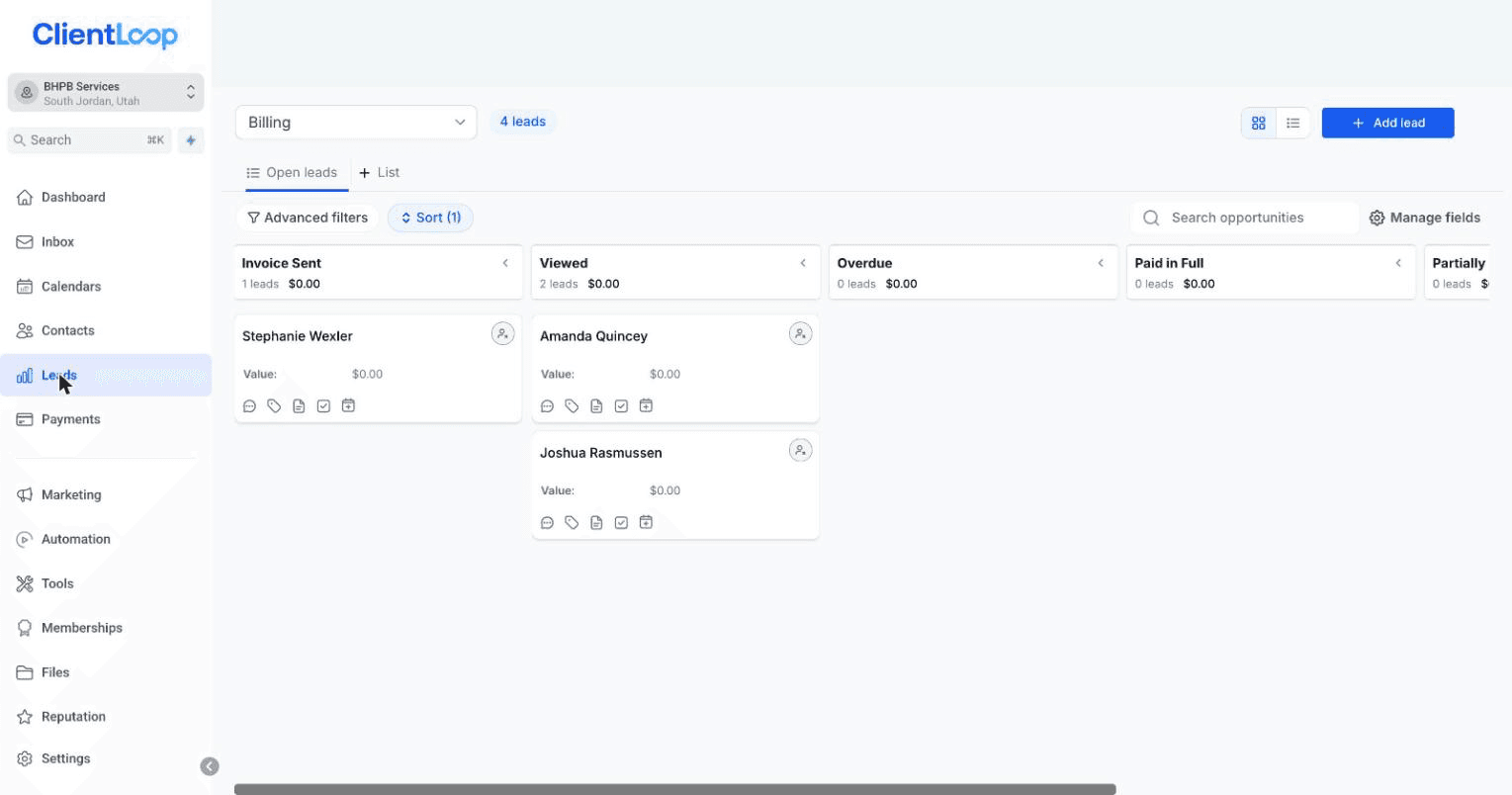
The billing board — the money, tracked like the work.
The same customer can sit on both boards at once: one card for the job, one for the invoice.
You’ll know it worked when
you send yourself a test invoice, pay it, and watch it move to Paid on its own.
Common questions
Do I have to chase unpaid invoices?
No. Overdue invoices move themselves and the reminders send themselves. You only step in when you want to.
Can I take a deposit and bill the rest later?
Yes — “Add Payment Schedule” in the builder splits an invoice into scheduled amounts.
What if the customer wants to pay by cheque or cash?
Record it manually against the invoice and it moves to Paid like any other payment. The record stays complete.
Can I send the same invoice every month?
Yes — that’s what a recurring invoice is for. Set it once and it issues on schedule.
What’s the difference between an estimate and an invoice?
An estimate is a quote for work you haven’t done yet. An invoice is a bill for work you have. An accepted estimate can become an invoice.
Where do I see everything a customer has ever paid?
On their contact record. Every invoice, payment and receipt is in their history.